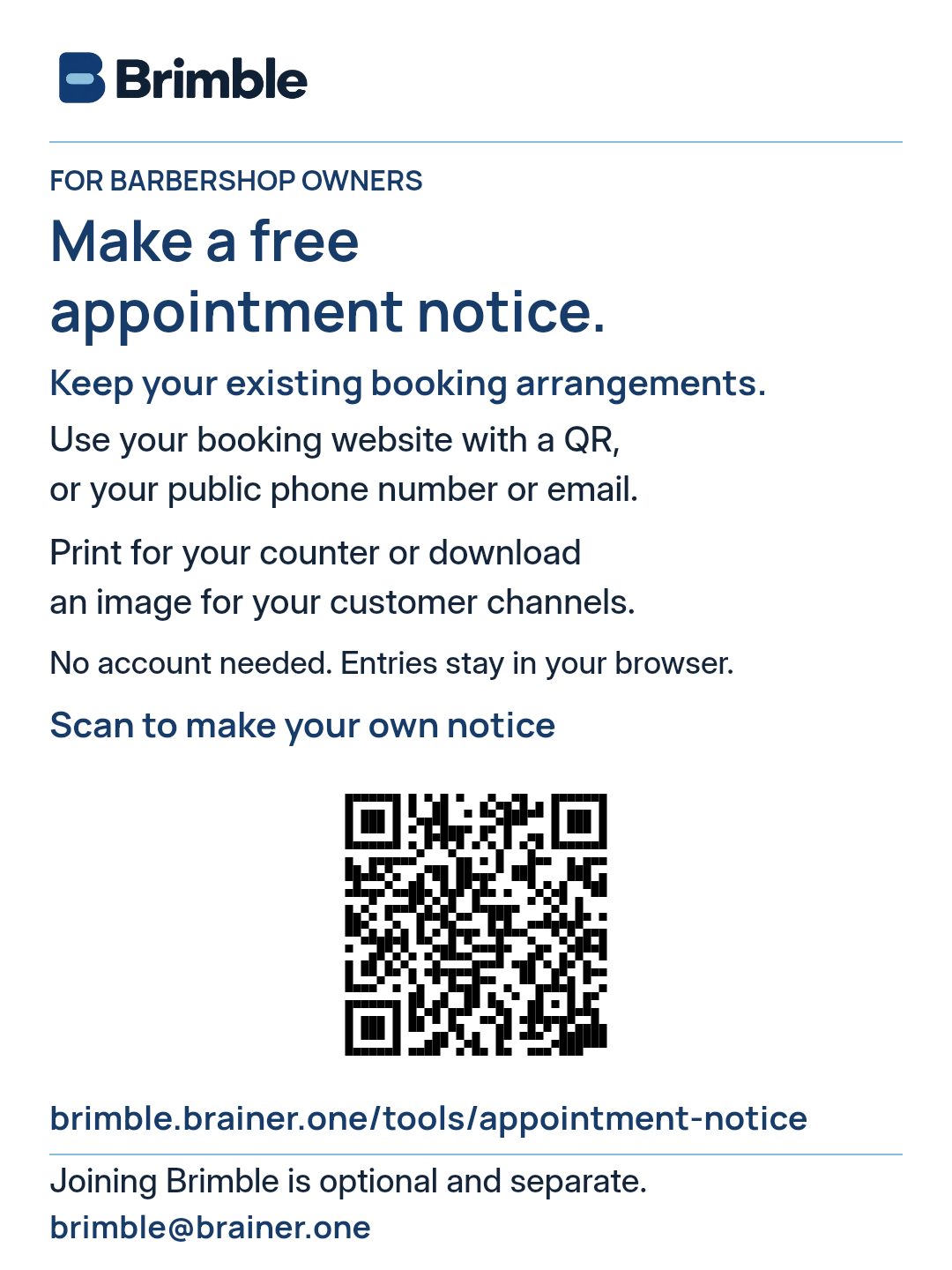
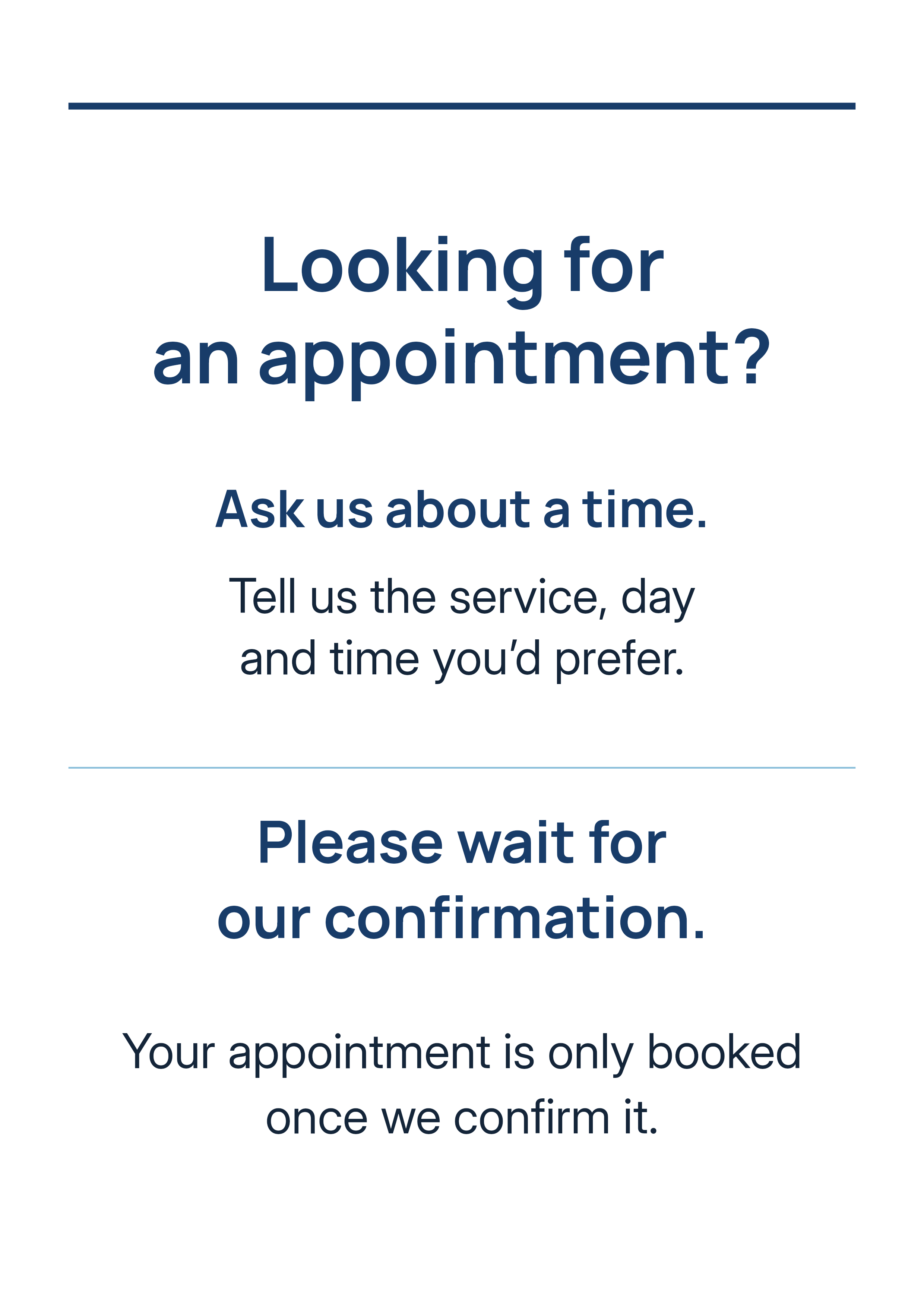
Download a finished appointment-enquiry sign for your counter without entering any details. If you want to show your shop name and existing booking website, phone or email, personalise a separate notice below.
No account needed. When you personalise a notice, your entries stay in this browser tab and clear when you reload or leave. This tool does not save or publish a shop, create bookings or establish Brimble approval.
Ready to use · Free download
Take a sign for your counter.
Help customers ask about an appointment. Download this finished sign and print it for your shop, without an account or entering any details.
It asks customers to speak to you about a time and wait for your confirmation.
These templates use a non-operational website and a reserved phone number, not a real shop’s details. Your own notice starts blank; only your details can be printed or downloaded.
Booking website + QR
Keep your existing booking website. Customers follow its booking steps.
Your shop name
Use our booking website
Scan the QR code or type the address to visit the shop’s booking website.
Booking websitehttps://example.invalid/booking
Follow the shop’s booking steps and check your confirmation there.
This notice does not reserve a time. Availability and booking terms are on the shop’s website.
Phone enquiry + walk-ins
Customers ask the shop and wait for confirmation. Email works here too.
Your shop name
Ask about an appointment
Contact the shop to ask about a date, time and service.
Phone01632 960123
Please wait for the shop to confirm your appointment before making plans.
Sending an enquiry does not reserve a time.
Prefer to walk in? Ask in the shop. Walk-ins depend on availability.
1. Add your shop details
Use details you’re happy to display publicly. Add a booking website, phone number or email. A website alone is enough.
Share or download a PNG for your own customer channels, or print for your counter. Paper size applies only to printing. Nothing is posted automatically.
This browser does not support PNG file sharing. Download the PNG, or open it to save it.
Print help and text fallback
Choose A4, portrait, 100% scale and turn off browser headers and footers. If your printer uses A4 paper for an A5 notice, choose A5 and “Fit to printable area” in the print window.
If the button doesn’t open printing, use the browser menu → Print (Ctrl+P or ⌘P on desktop). On a phone, look in the browser’s Share or menu options. You can also select and copy the notice text into a document to print or use on your own customer channels.
2. Preview your notice
Updates as you type. Check the contact details before printing or downloading.
Your customer notice
Add your own shop details
A shop name and valid booking website, phone number or email will bring your preview into view. No sample contact details are added.
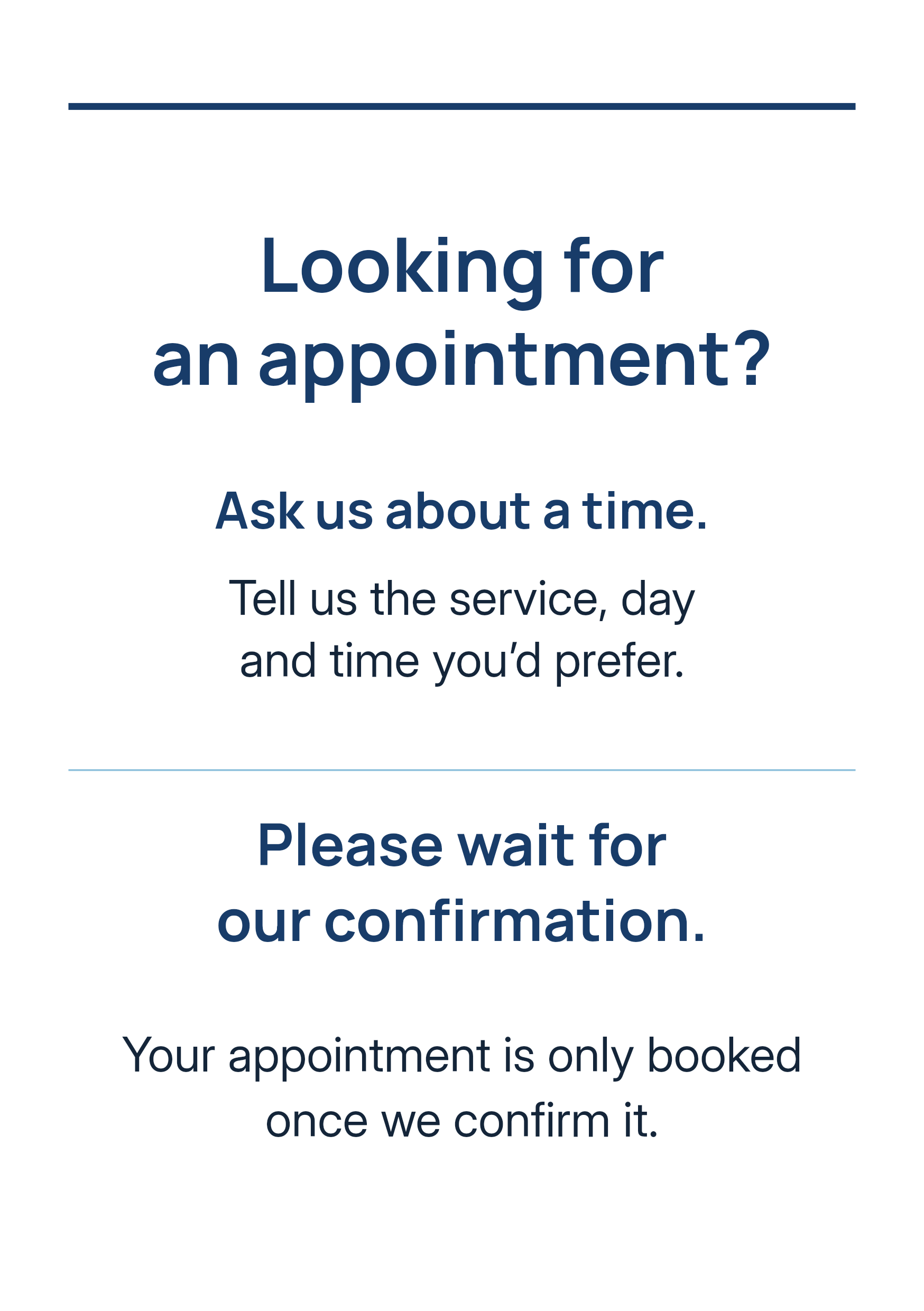
Pass it on to another shop owner
Share the free notice maker.
Send an invitation through your own messaging app, or take a printed copy to another shop. The address and QR open the free tool directly. They can use their existing booking website or public phone/email without an account or joining Brimble.